Mac
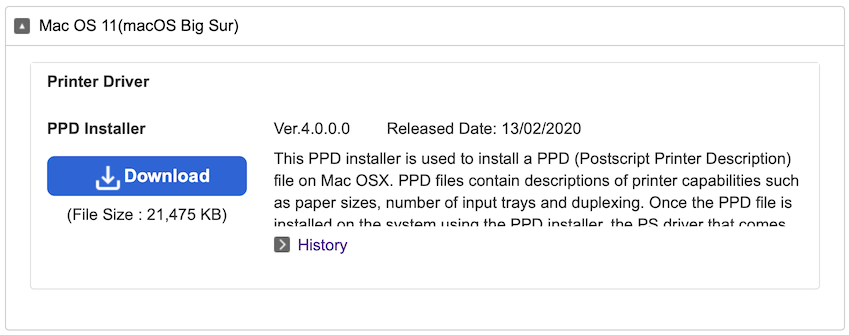
- The macOS driver is available on the Ricoh support site. Choose the version that corresponds to your macOS. Download the driver and install it.
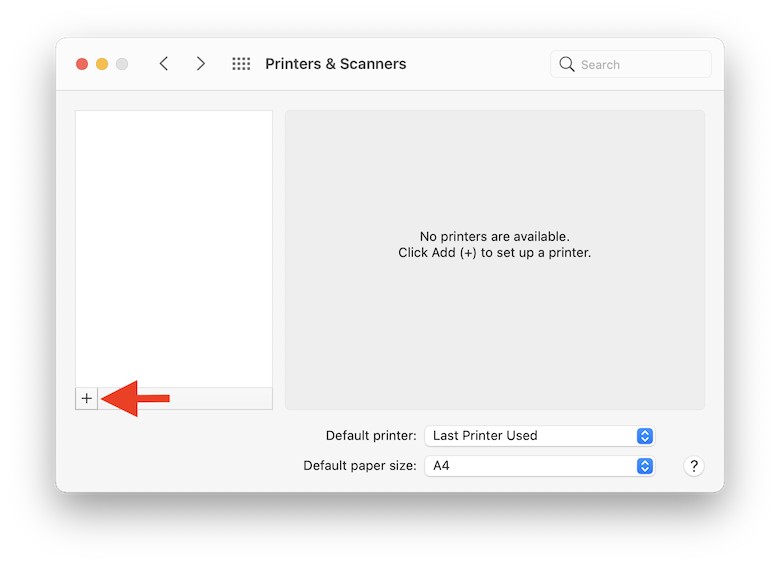
- In the system preferences, go to printers and scanners. Click on the + to add a printer.
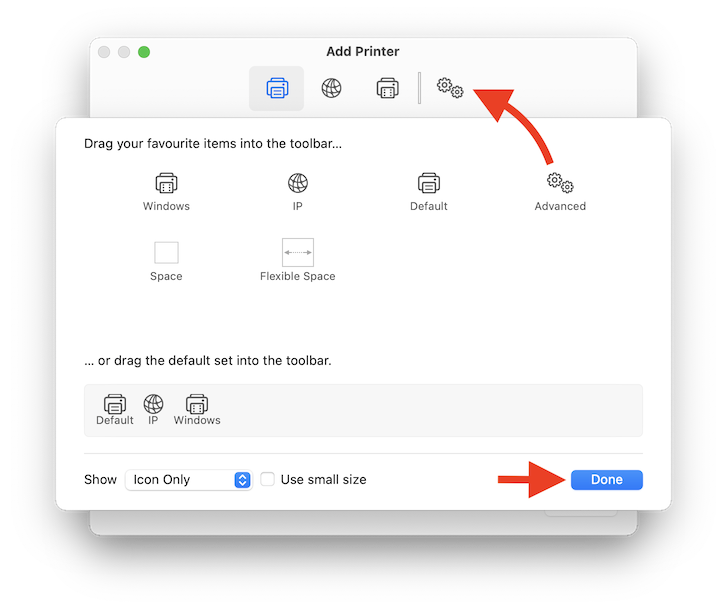
- Right-click in the top menu and customise the toolbar.
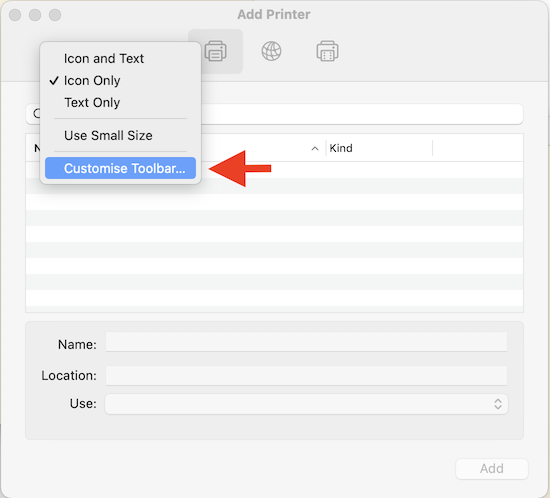
- Drag and drop the advanced menu and click on done.
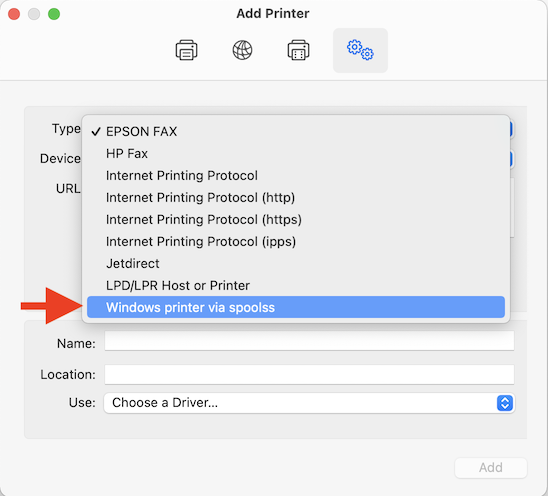
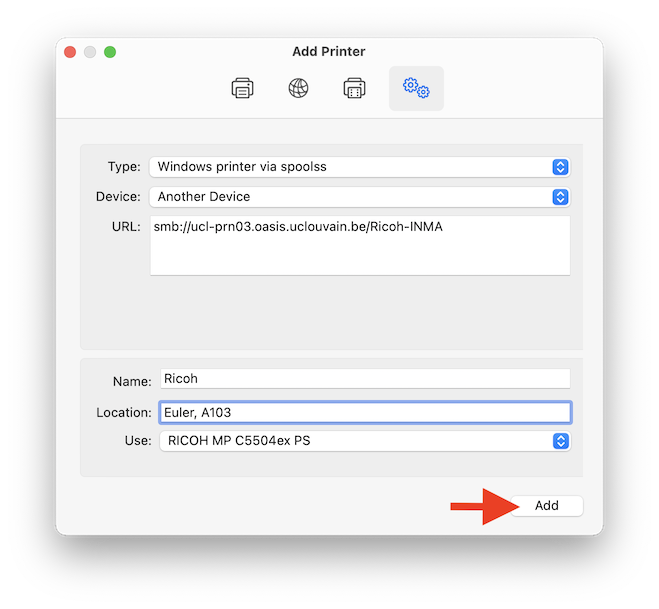
- Choose Windows printer via spoolss in the Type drop down menu.
-
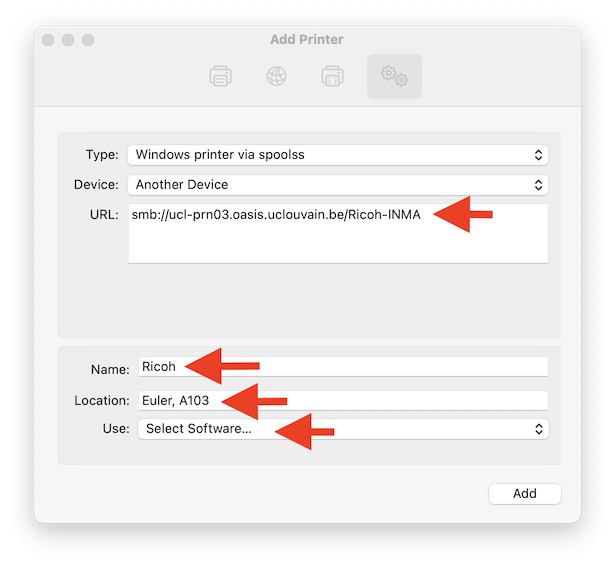
Fill in the different fields:
- URL: smb://ucl-prn03.oasis.uclouvain.be/Ricoh-INMA
- Name: a charming little name
- Location: Euler, A103
Click on Select Software….
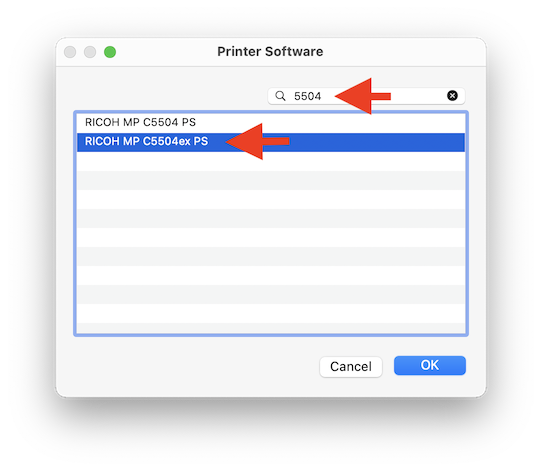
- Select the driver: RICOH MP C5504ex PS.
- Click on Add.
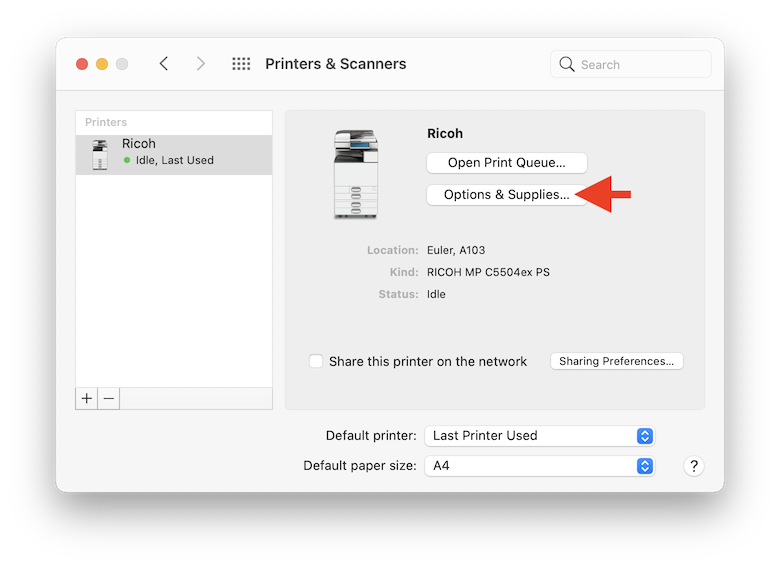
- Click on Options & Supplies.
-
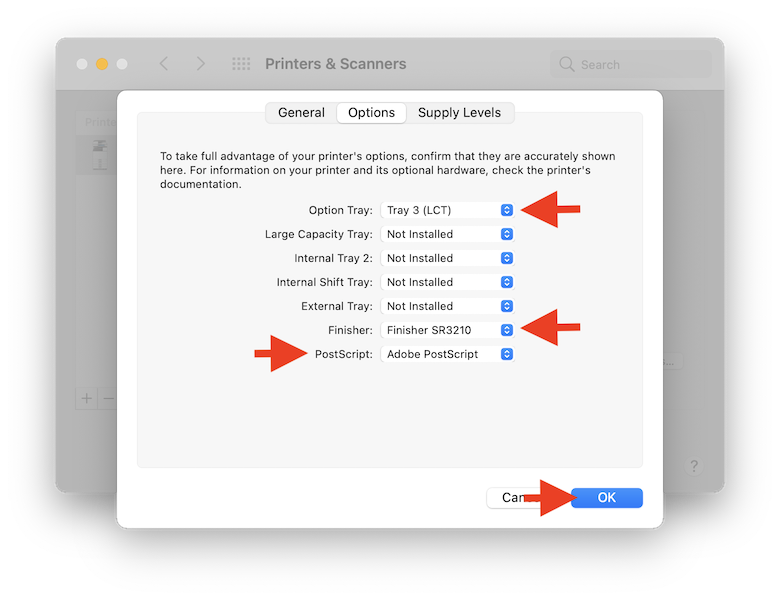
In Options, from the drop-down menus choose :
- Option Tray: Tray 3 (LCT)
- Finisher: Finisher SR3210
- PostScript : Adobe PostScript
Click on OK.
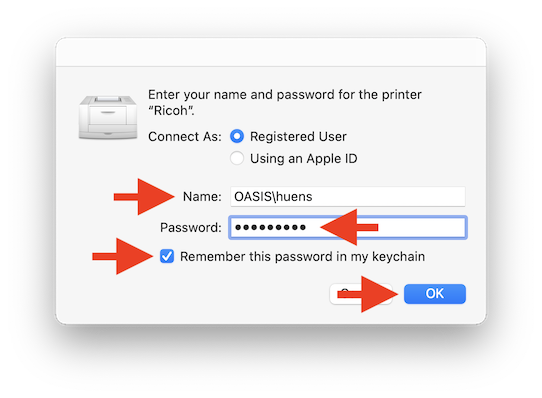
- When printing for the first time, authentication on the SISE print server is required. If you choose to save the password in your keychain, you will not need to authenticate again. The name is OASIS\your_UCLouvain_global_ID and the password is the one associated with this identifier. If you do not have a global UCLouvain identifier, the name is OASIS\guest-inma and the password is the one you have been given.
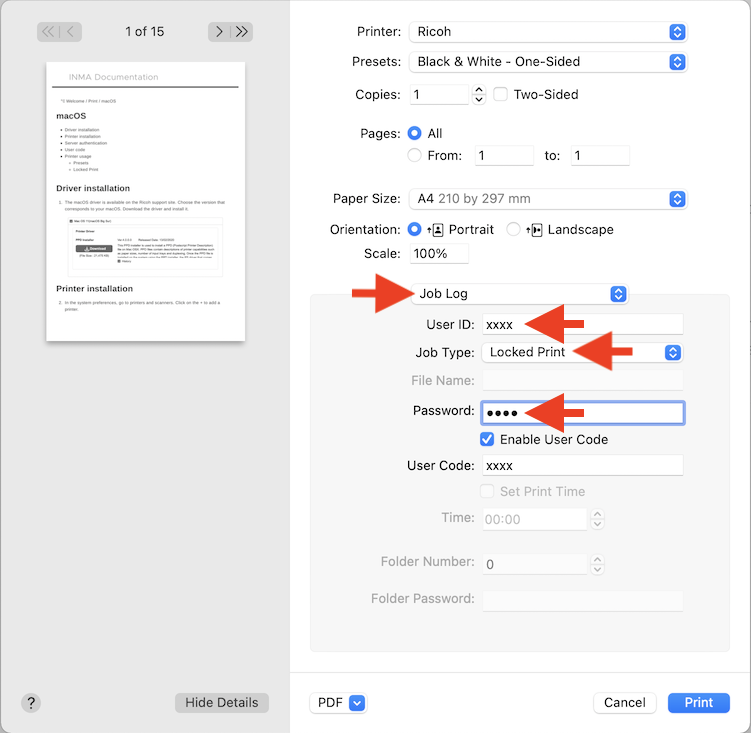
- To date, we use a personal user code as an additional means of protection. Without this, printing is impossible. To obtain your code, contact Pascale Premereur. To encode it, go to the Job Log menu, click on Enable User Code and write it in the field provided.
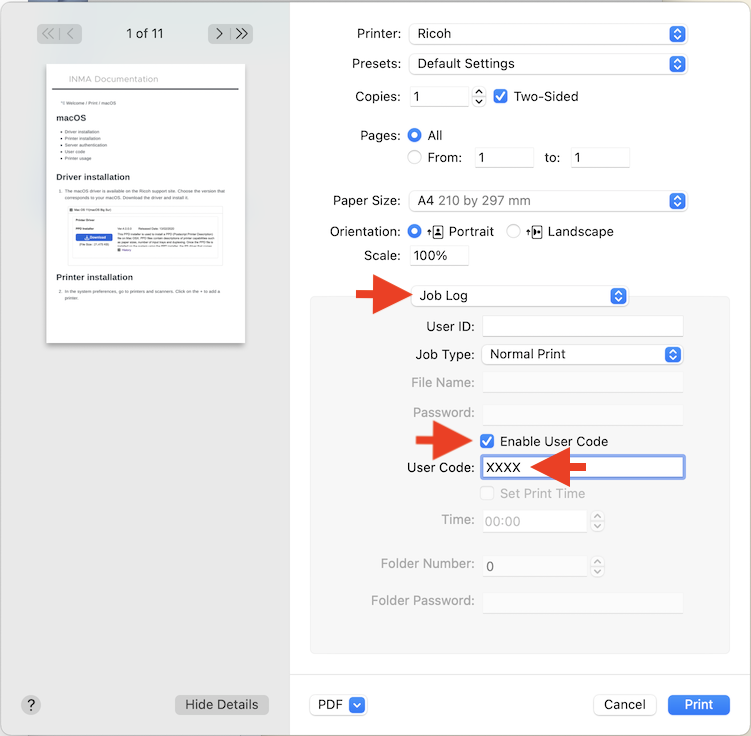
In any case, start by entering your user code as explained above.
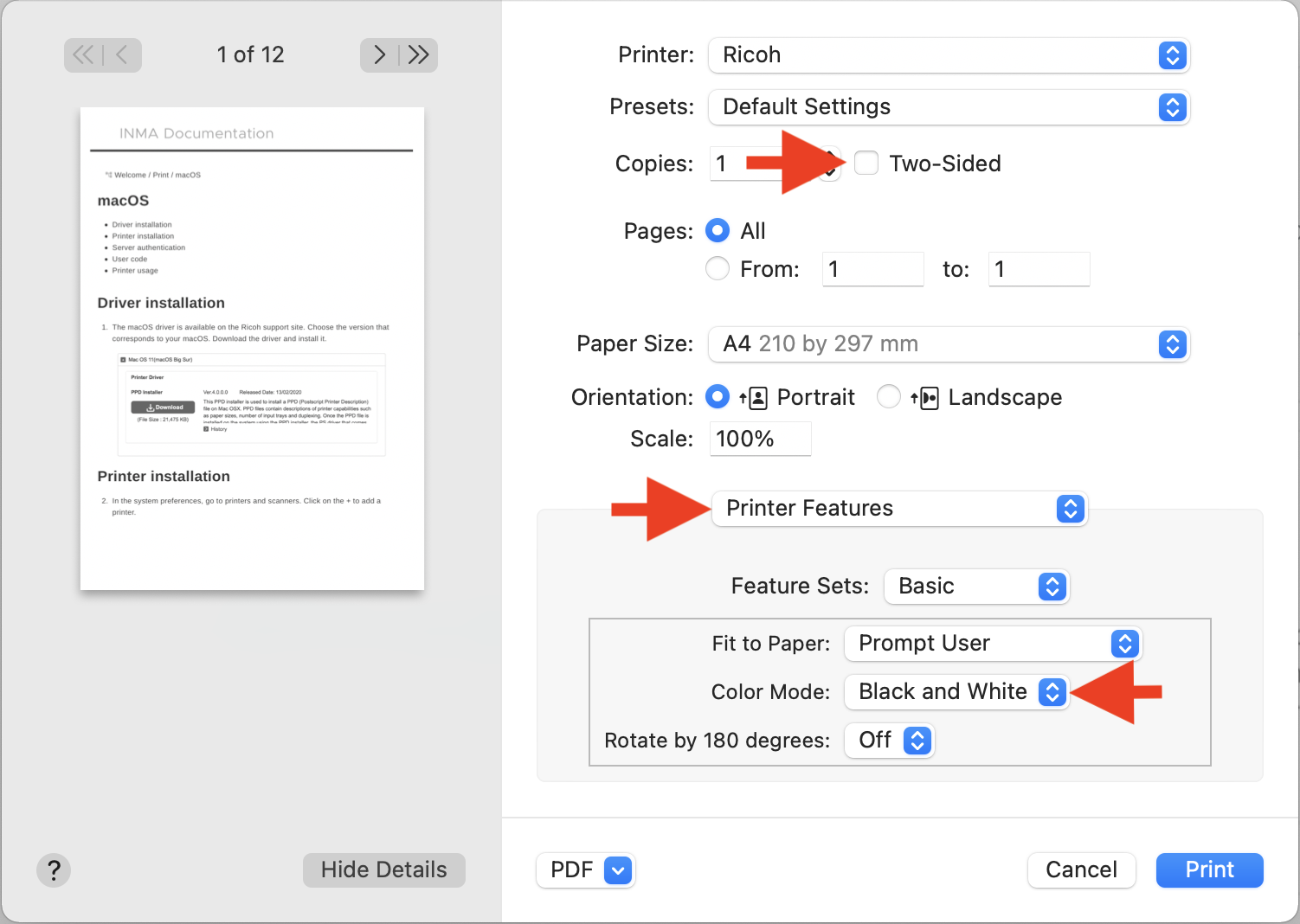
It is useful to define your own printing parameters, i.e. to specify by default: the user code, single-sided or double-sided, black and white or color. We will show how to create a single-sided black and white preset.
- For a single side black and white printing, disable double-sided printing. In Printer Features, select the Black and White mode.
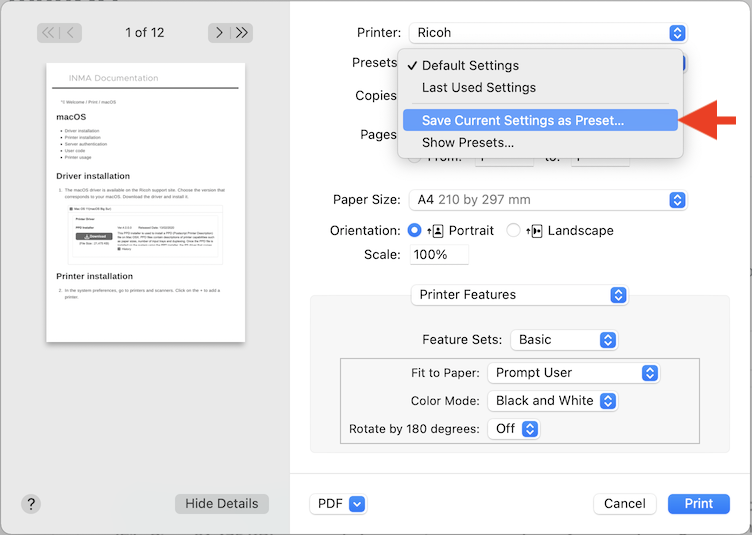
- In Presets, choose Save Curent Settings as Preset….
- Give your choices an explicit name and click OK.
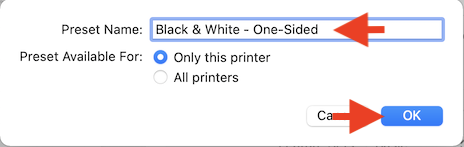
Repeat this procedure for all the presets you want. For example, Black & White - Two-Sided, Color - One-Sided and Color - Two-Sided.
-
This is a printout that only occurs when the user enters the password they have chosen for this printout on the copier console. This allows you to start printing only when you are physically present at the machine. Very practical for printing on colored paper or any confidential work such as exams.
In Job Log, choose Locked Print. Enter a User ID: this will allow you to find the printout on the printer console. The Password is necessary. It must be entered on the console to start printing. This Password is chosen by the user and may be different from the user code.