
Linux
-
Download the ppd here
-
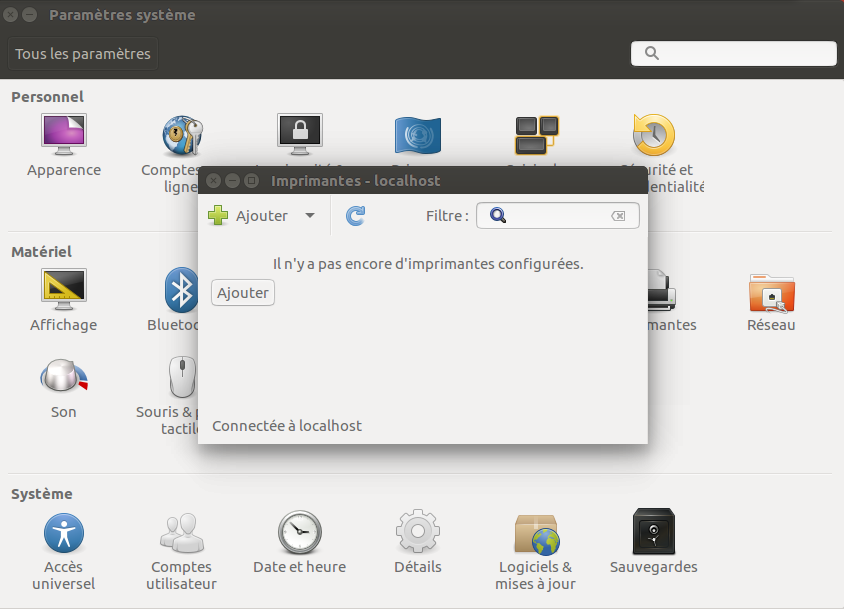
Open the System Parameters and select printers.
-
Click on Add.
-
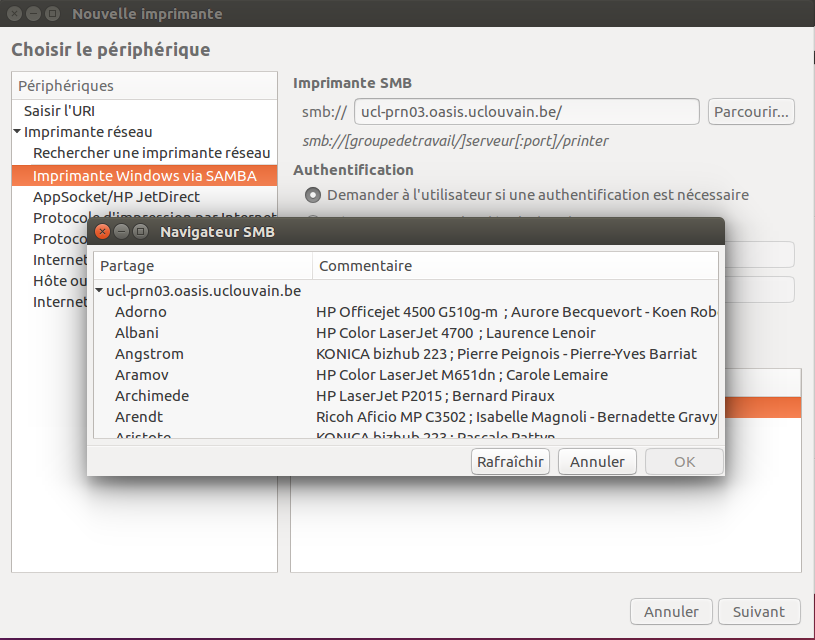
Under “network printer” select “Windows printer via Samba”
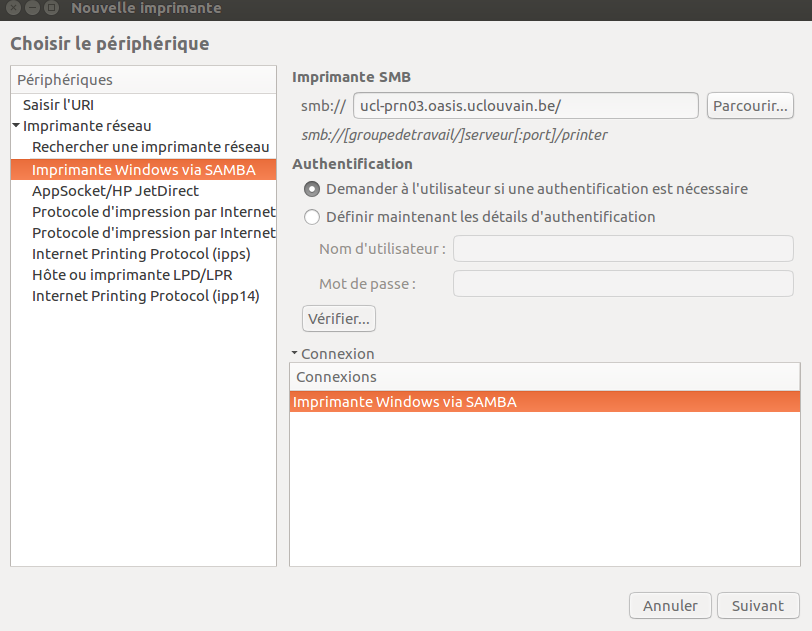
Type the name of the server : UCL-PRN03.OASIS.UCLOUVAIN.BE (in UPPER case)
Then click on Browse
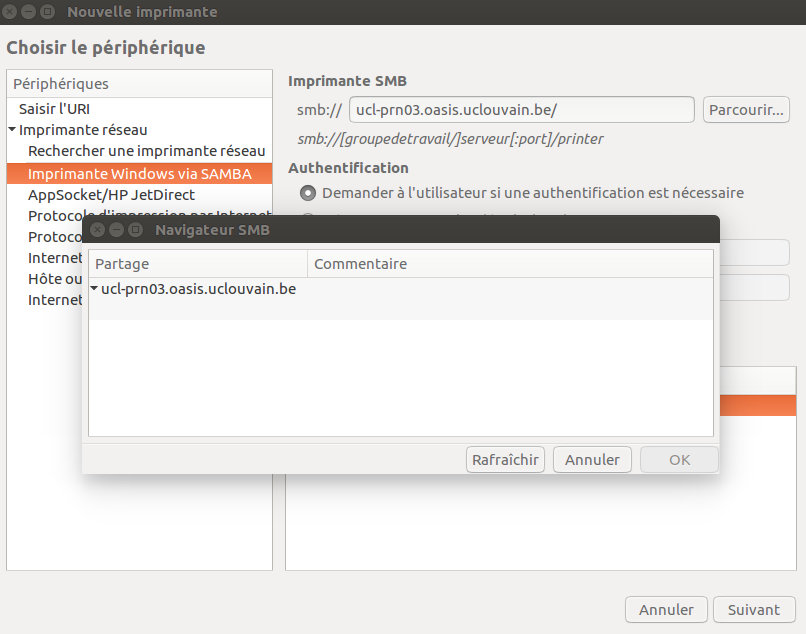
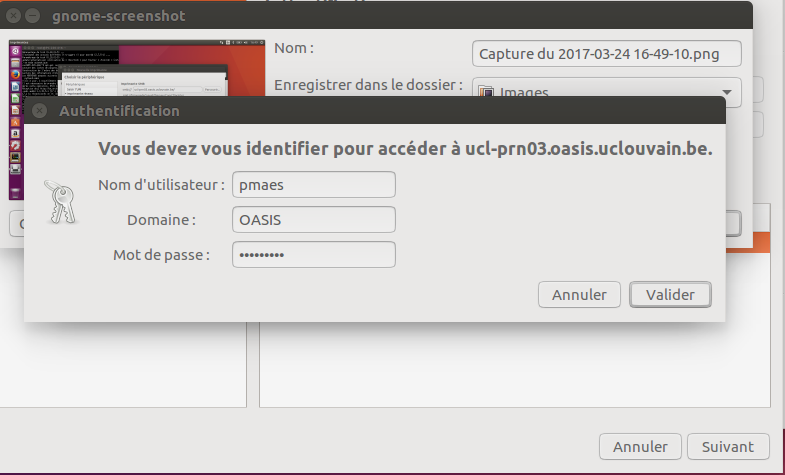
- You will be asked to give your UCLouvain credentials or guest-inma credentials.
-
If there are no problems, you will get a list of the printers managed by the server
-
Choose Ricoh-INMA printer.
-
Provide ppd file (select file downloaded earlier).
-
In some case, a configuration is needed:
-
In Options, from the drop-down menus choose :
-   Option Tray: Tray 3 (LCT)
-   Finisher: Finisher SR3210
-   PostScript : Adobe PostScript

Click on  OK.
When printing for the first time, authentication on the SISE print server is required. If you do not have a global UCLouvain identifier, the name is guest-inma and the password is the one you have been given.
We use a personal user code as an additional means of protection. Without this, printing is impossible. To obtain your code, contact Pascale Premereur. To encode it, go to printer properties and under printer options there is the Job Log menu. Simply write it in the field provided.