A125 Room
The room a.125 is equipped with a Barco Clickshare CX30 system, connected to a 65” TV screen and a Poly (associated with additional table microphone).
Use the Philips remote control to switch on the TV screen. You should see the clickshare welcome screen “Welcome to Salle Euler A125”.
Before leaving the room Euler a.125, use the Philips remote control to switch off the TV screen. By default, the Barco system is always ON and is always sending data on HDMI1-IN of the screen.
To connect to the system, share you screen to the TV and/or use the complete system for a videoconference, follow these steps:
-
Connect the Clickshqre USB-C dongle on your device (laptop computer/tablet/smartphone). After a few seconds, the LEDs circle of the dongle will start to flash white.
-
Explore your device, the dongle normally appears like a CD/DVD drive “CD Drive (D:) Clickshare”, and double click on it.

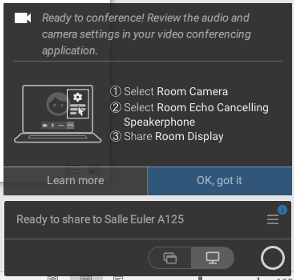
On Windows, the Barco software will automatically run, and the Barco control panel (and help) will appear (you could be asked to accept some permissions: sharing screen, use of microphone and webcam for the room).
-
To share your screen, push down the central button of the dongle. The LEDs circle will turn red and your screen will be displayed.
-
To end the screen sharing, just push down again the central button of the dongle. This will instantaneously stop the sharing and the LEDs circle will be white.
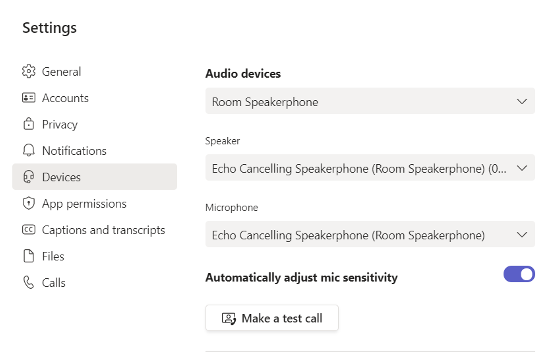
On the TEAMS application, go to settings, and set (if no by default) as follow, for the audio:
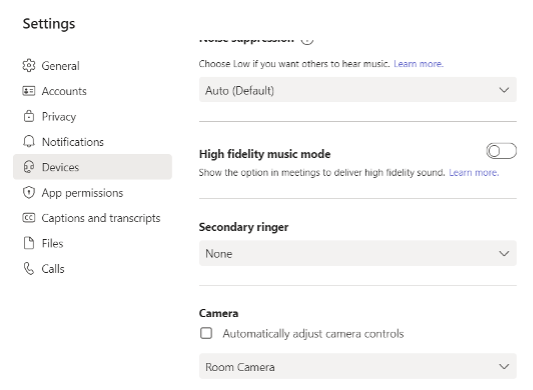
And for the camera:
Notes :
- The Polycom camera and sound system automatically zooms on the speaker in the room.
- To mute the microphone of the room, click down the pushbutton on the top of the table microphone. When off, its light will turn red, and the light of the POLY sound bar too.
-
Go to https://www.barco.com/en/clickshare/app ,download the ClickShqre Windows Application and install it.
-
Connect the Wi-Fi Antenna of your device to the network: ClickShare-1862410008 The associated password is: clickshare
-
When connected on wireless network of the clickshare, click on the application (Its symbol is the big O):
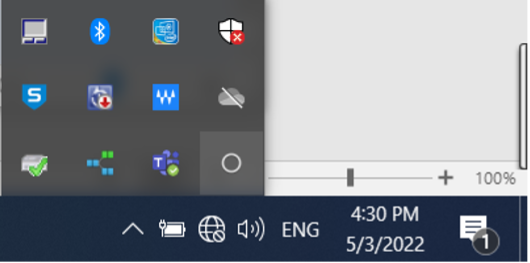
and the on “Select a meeting room”, and “Salle Euler A125”:
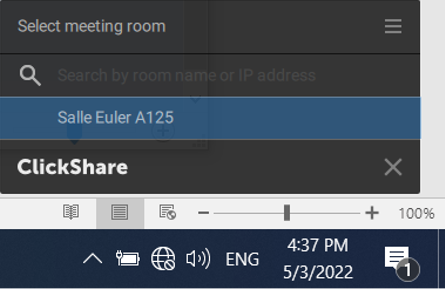
-
When connecting to the meeting room, the App will ask to type the 4 numbers showed on the bottom of the TV screen.
-
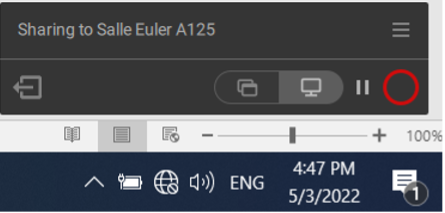
When done, the app will be ready to share with the meeting room. As for the dongle, click on the big “O” on the App to start sharing:
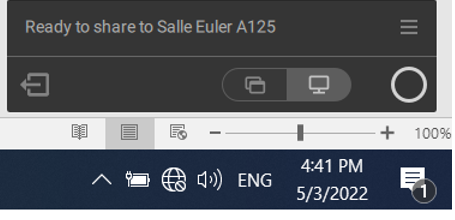
Once again, as for the dongle, the big “O” will switch red when sharing the screen of the device with the meeting room. Click on it to switch back to white and stop to share.